
Windows · Developer Tools
PortQry Command Line Port Scanner
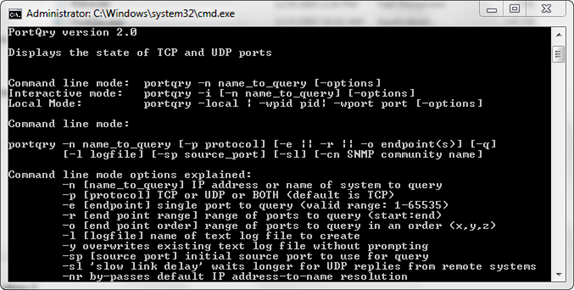
Portqry.exe is a command-line utility that you can use to help troubleshoot TCP/IP connectivity issues.
Version 2.0.20191106 · by Microsoft
Official site: support.microsoft.com
About PortQry Command Line Port Scanner
Portqry.exe reports the status of a TCP/IP port in one of the following three ways:
- Listening
A process is listening on the port on the computer that you selected. Portqry.exe received a response from the port.
- Not Listening
No process is listening on the target port on the target system. Portqry.exe received an Internet Control Message Protocol (ICMP) "Destination Unreachable - Port Unreachable" message back from the target UDP port. Or if the target port is a TCP port, Portqry received a TCP acknowledgement packet with the Reset flag set.
- Filtered
The port on the computer that you selected is being filtered. Portqry.exe did not receive a response from the port. A process may or may not be listening on the port. By default, TCP ports are queried three times, and UDP ports are queried one time before a report indicates that the port is filtered.
Portqry.exe can query a single port, an ordered list of ports, or a sequential range of ports.
## Examples
The following command tries to resolve "reskit.com" to an IP address and then queries TCP port 25 on the corresponding host:
`portqry -n reskit.com -p tcp -e 25`
The following command tries to resolve "169.254.0.11" to a host name and then queries TCP ports 143,110, and 25 (in that order) on the host that you selected. This command also creates a log file (Portqry.log) that contains a log of the command that you ran and its output.
`portqry -n 169.254.0.11 -p tcp -o 143,110,25 -l portqry.log`
The following command tries to resolve
my_server to an IP address and then queries the specified range of UDP ports (135-139) in sequential order on the corresponding host. This command also creates a log file (my_server.txt) that contains a log of the command that you ran and its output.
`portqry -n my_server -p udp -r 135:139 -l my_server.txt`
.
How to install PortQry Command Line Port Scanner
- Click Download — the developer's official website opens in a new tab.
- Download the latest version there and run it. Choose Custom/Advanced where offered, and skip any bundled extras.
- Prefer the command line? With Chocolatey you can install and update it with: choco install portqry-command-line-port-scanner
- Open PortQry Command Line Port Scanner once it finishes installing.
Frequently asked questions
Is PortQry Command Line Port Scanner free to download?
Yes. The Download button sends you to support.microsoft.com, the developer's official site, where PortQry Command Line Port Scanner is available to download. Grabware doesn't host or modify any files.
What is the latest version of PortQry Command Line Port Scanner?
The version listed here is 2.0.20191106, published /Date(1573. The developer's site always has the newest release.
How do I install PortQry Command Line Port Scanner from the command line?
With Chocolatey, run: choco install portqry-command-line-port-scanner. This installs it from the official source and keeps it updated.
Is PortQry Command Line Port Scanner safe?
PortQry Command Line Port Scanner downloads directly from the developer. As always, scan the installer with your antivirus and choose Custom setup to skip any bundled extras.
Alternatives to PortQry Command Line Port Scanner
More Adobe Acrobat Reader DCView, print, sign, and annotate PDF files.
 Google ChromeChrome is a fast, simple, and secure web browser, built for the modern web.
### Notes
- This package uses Chrome's administrative MSI installer and installs…
Google ChromeChrome is a fast, simple, and secure web browser, built for the modern web.
### Notes
- This package uses Chrome's administrative MSI installer and installs… ChocolateyChocolatey is the package manager for Windows (like apt-get but for Windows)Chocolatey Core ExtensionsHelper functions extending core choco functionality
 March 2014 servicing stack update for Windows 8.1 and Windows Server 2012 R2 (KB2919442)The update fixes some issues in the servicing stack of Windows 8.1 and Windows Server 2012 R2.Chocolatey Compatibility ExtensionExtension package to provide compatibility with older versions of Chocolatey
 Microsoft Visual C++ Redistributable for Visual Studio 2015-2026Run-time components that are required to run C++ applications that are built by using Visual Studio 2015-2026Update for Universal C Runtime in Windows (KB2999226)Update for Universal C Runtime (CRT) in Windows. Before you install this update, check out the prerequisites section.